








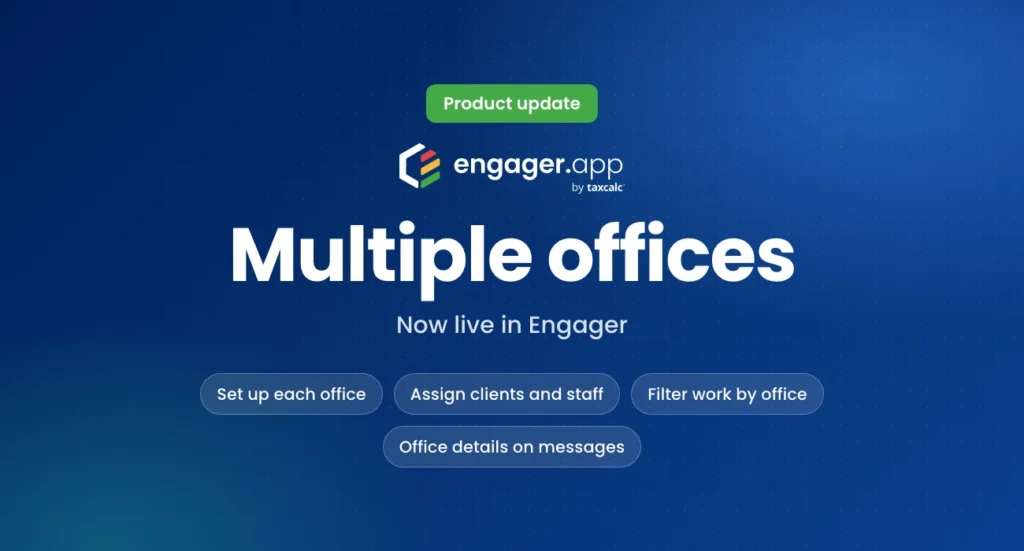
From 27 October 2026, you can run every office in your practice from one Engager account. Multiple offices lets you set up each office, put clients and staff in the right one, and send every client their own office’s details. It is included in every plan at no extra cost.
What you can do
- Set up your offices with a code, name, address, contact details and an optional legal entity name, then choose a default office for new clients and users.
- Assign clients and staff. Each client belongs to one office, and each user has a primary office plus any additional offices they work across.
- See work by office. Filter, export and bulk update the client list by office, and filter or group jobs and deals by the client’s office in saved views.
- Send the right details. Office placeholders add the office name, address, email, telephone and legal entity name to emails and documents, so a Manchester client sees Manchester’s details and a London client sees London’s.
Switching it on
Already using Engager? Go to Settings > Practice details > Offices and set Multiple offices to yes. Your first office is created from your company information, and your existing clients and users are put in it, ready for you to move. You can turn multiple offices off at any time: office fields and filters are hidden, and your office data is kept.
Also in this release
Internal deadlines no longer have to fall before statutory deadlines, so you can set the dates that suit your practice. Internal deadlines still take priority when you sort and filter jobs.
Try Engager
See everything multiple offices can do on the multiple offices feature page. Not using Engager yet? Start a free 28-day trial, with no card details required, or book a demo and we will show you around.