- Features
Onboard clients
Communicate and team
Customer storyHow Adrian Bryan built a scalable, system-driven practiceWith TaxCalc and Engager working together.
Read the story → - Integrations
Compliance, referrals and payments
Customer storyHow Appleleaf gained control of leads, workflows and client communication"Engager understood the pain points accountants face."
Read the story → - Pricing
- Support
Learn and stay updated
Looking for practice management software?Try for free. No card details required.Packages start from as little as £9 +VAT per month.
Free 28-day trial - Blog
- Contact us
- Get Started
Start your journey
Why firms choose Engager"In short, if you're an accountant and not using Engager, you're missing a trick. It's an invaluable tool that has significantly improved our operational efficiency and client service."Jason Holden, Founder, Holden Associates

Features / Multiple Offices
One practice. Every office.
Set up each office, assign clients and staff, and send every client their own office’s details, all from one Engager account.
No card details required. Multiple offices is included in every plan at no extra cost, from £9 +VAT a month.
Who it’s for
Practice management software for multiple offices
Built for practices that work from more than one place.
Practices with several branches
Run every branch from the same Engager account, each with its own address and contact details.
Merged or acquired firms
Bring a practice that has joined you into Engager as its own office, with its clients kept together.
Groups with several legal entities
Record the legal entity behind each office, so client messages carry the right name under one brand.
How it works
How multiple offices works
Set up your offices
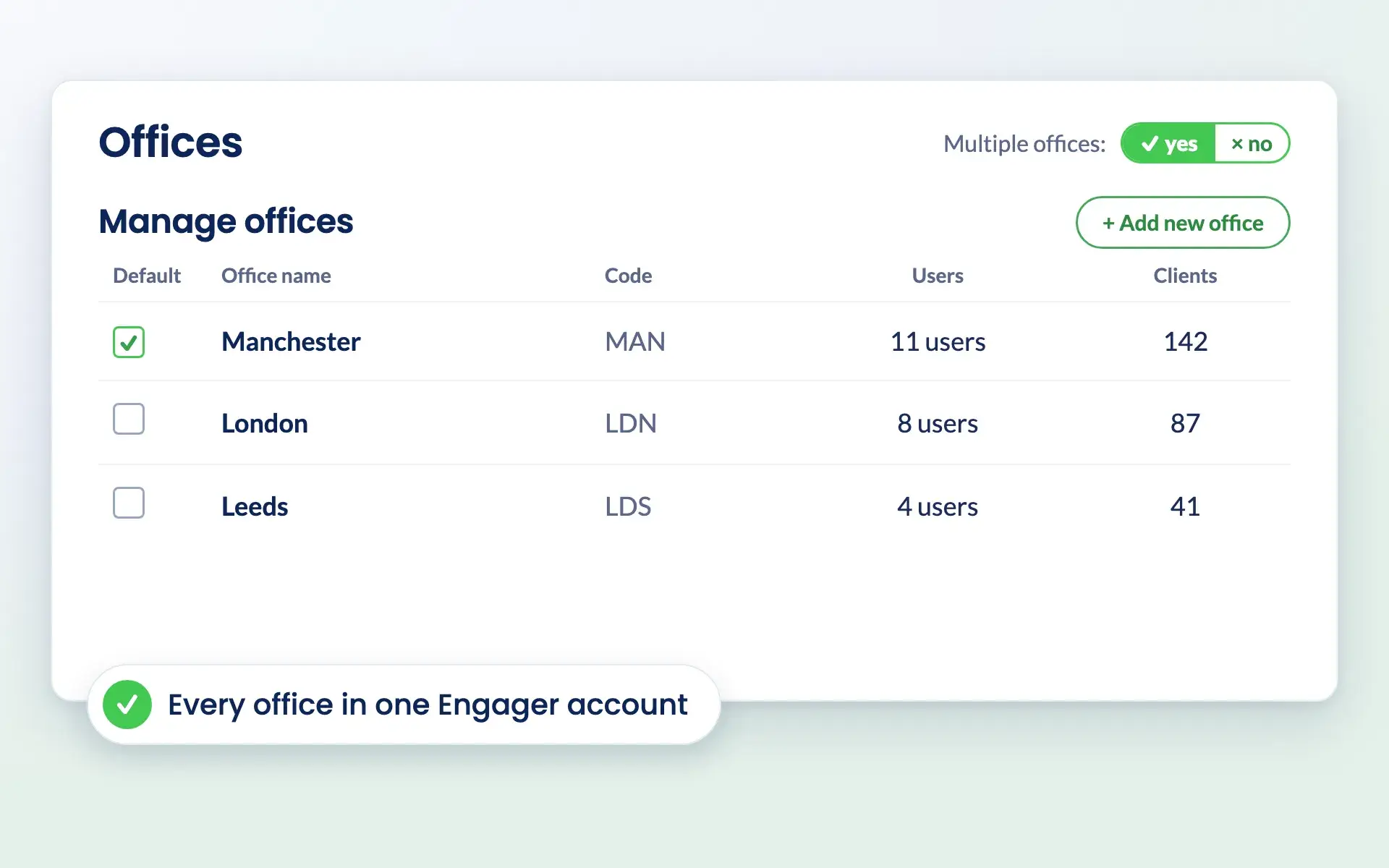
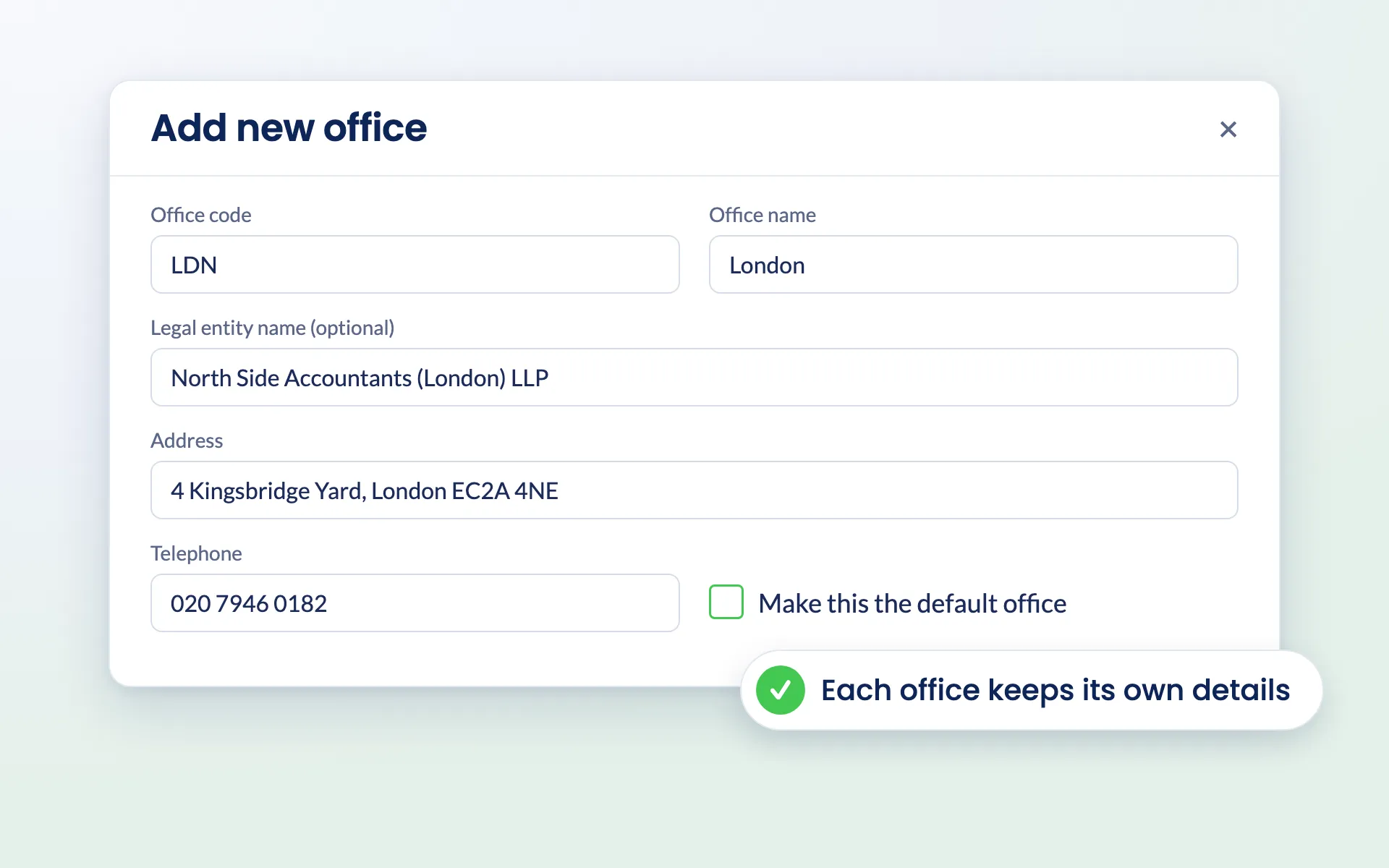
Switch on multiple offices in Settings > Practice details > Offices. Your first office is created from your company information. Add more with a code, name, address and contact details, plus an optional legal entity name.
Choose a default office and Engager gives it to new clients and users automatically.
Put clients and staff in the right place
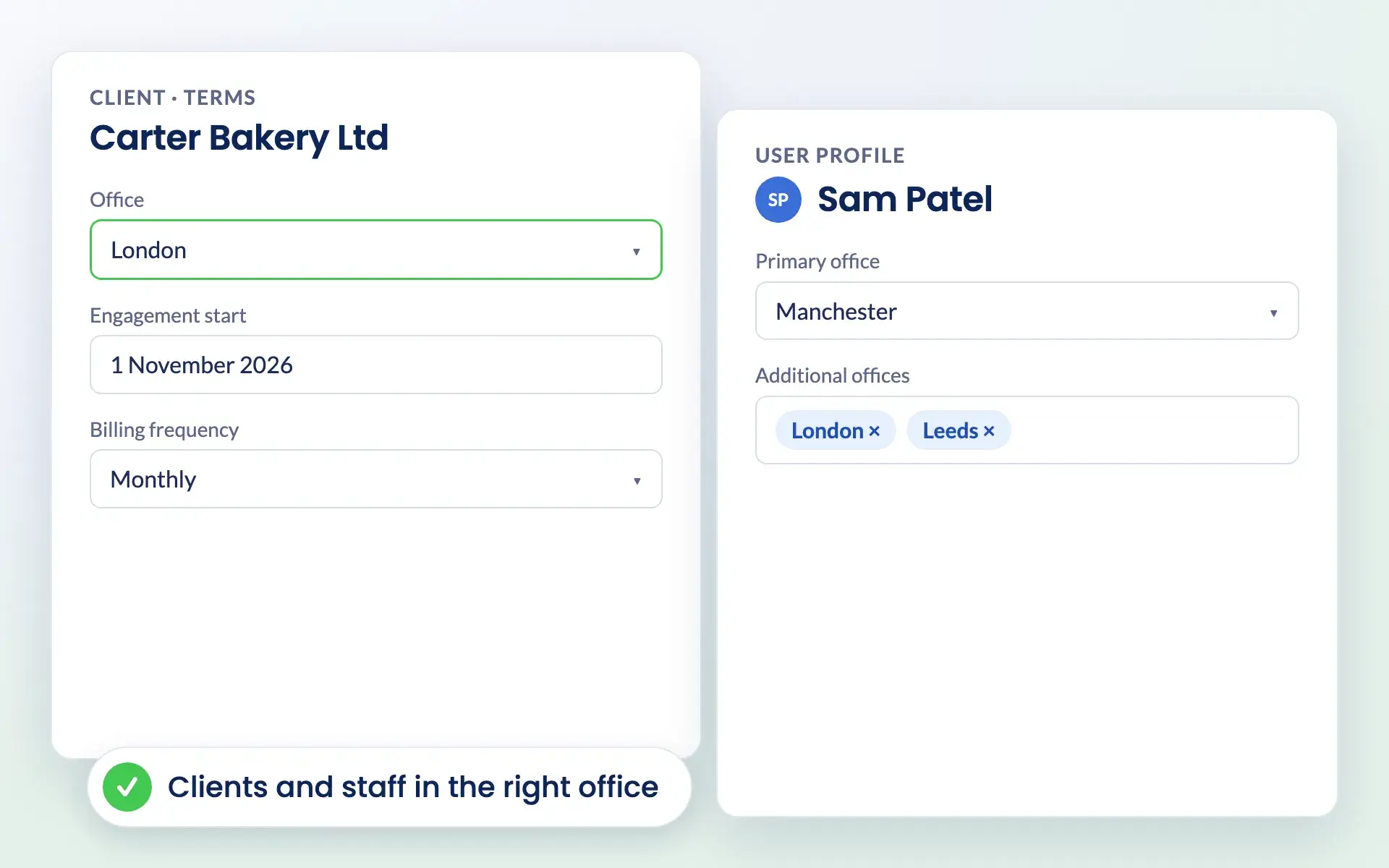
Each client belongs to one office, set in the Terms step of the client record. Each user has a primary office and can also work across any additional offices.
The offices list shows how many clients and users each office has.
See work by office
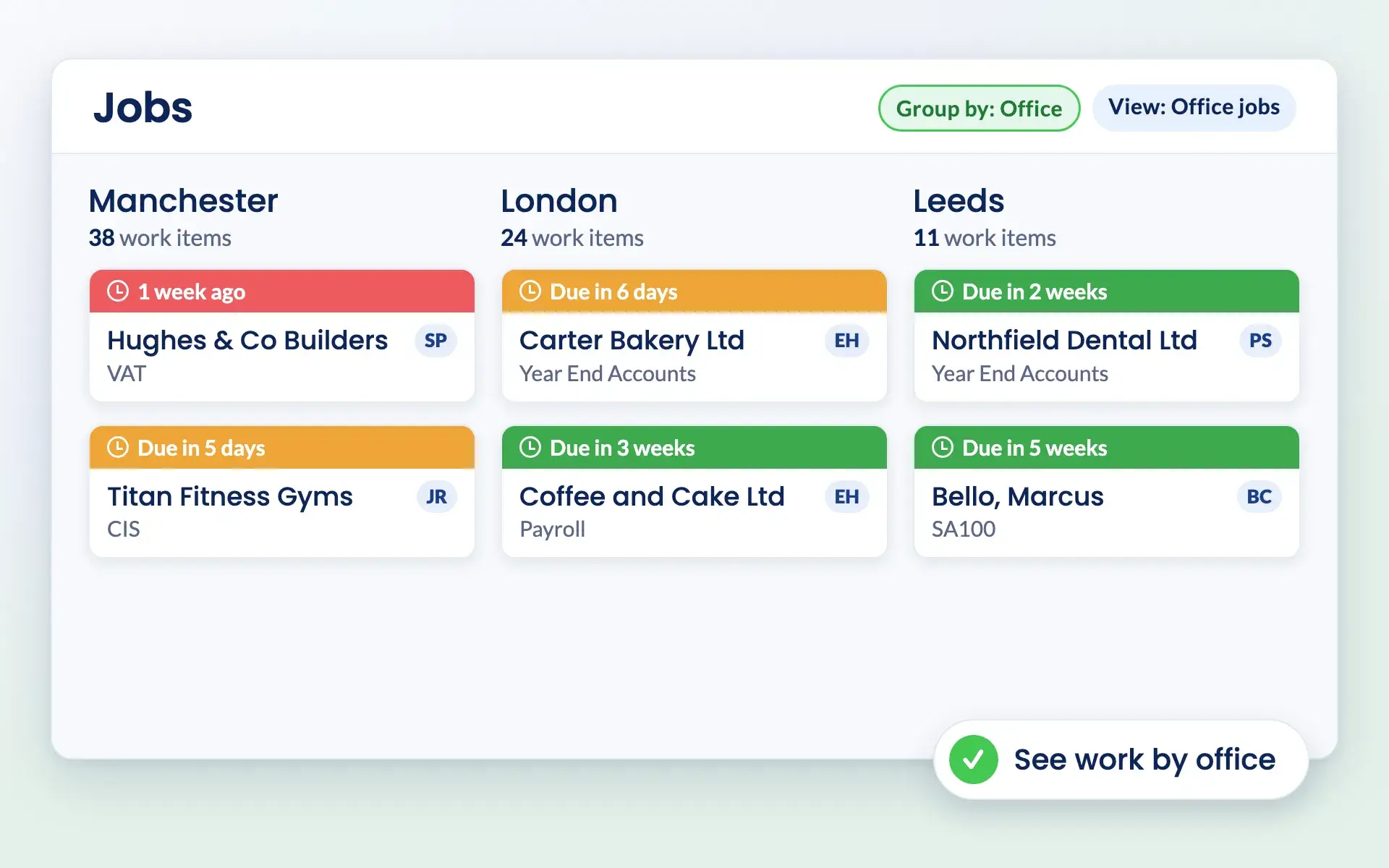
The client list has an office column and filter, and you can export or bulk update clients by office.
On jobs and deals, filter and group by the client’s office, and save it as a view so it is there next time.
The right details on every message
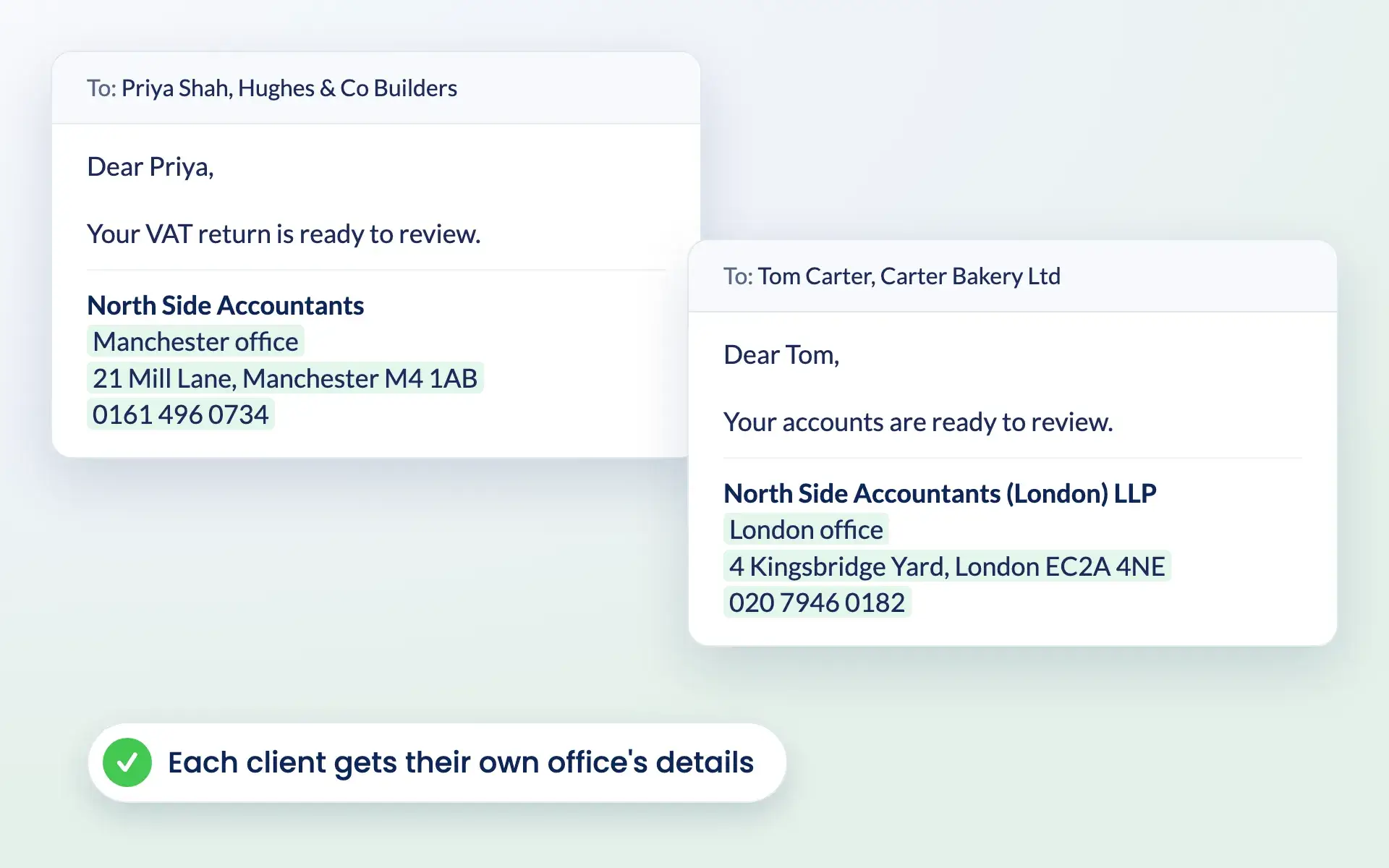
Office placeholders add the office name, address, email, telephone and legal entity name to your emails and documents.
A client of your Manchester office sees Manchester’s details. A client of your London office sees London’s.
Reviews
Rated Excellent by accountants and bookkeepers
4.6 out of 5 from 199 reviews on Trustpilot, 181 of them five stars.
“Moved over from another practice management system and I’m so pleased I did. My only complaint is why I didn’t do it sooner!”
“Finally found a practice management software that ticks every box and keeps us on track with deadlines, jobs, onboarding and billing.”
“It keeps everything in one place, and has taken a lot of admin stress off our plate. It was built by an accountant for accountants, and you can really tell.”
Works together
Features for growing practices
Give every office and every person the right view of Engager, at no extra cost.
Questions
Multiple offices FAQs
What does multiple offices do in Engager?
It lets you set up each of your offices, assign every client to one office and every user to a primary office plus any others, filter and group work by office, and add each office’s details to client emails and documents.
Does multiple offices cost extra?
No. It is included in every plan at no extra cost. Every plan includes every feature and unlimited users, from £9 +VAT a month.
How do I switch it on?
Go to Settings > Practice details > Offices and set Multiple offices to yes.
What happens to my existing clients and users?
When you first switch it on, your existing clients and users are put in your first office, which is created from your company information. You can then move clients in bulk from the client list and set each user’s offices in their profile.
Can a user work across more than one office?
Yes. Each user has one primary office and can be given any number of additional offices.
Can I turn it off again?
Yes. Turning it off hides office fields and filters, and your office data is kept in case you switch it back on.
Get started
Bring every office into Engager
Try every feature free for 28 days, multiple offices included. Already on Engager? Switch it on in Settings > Practice details > Offices.
Newsletter
Be the first to know.
Product updates, events and practical tips for running your practice, straight to your inbox. No spam, unsubscribe any time.